Edit Object=>Table
In this dialog box, the cell text can be typed in.
The text can have multiple lines. You can use special characters and ANSI character sets. Characters or series of characters can be printed in sub- or superscript. The text can contain lines, arrows and symbols.
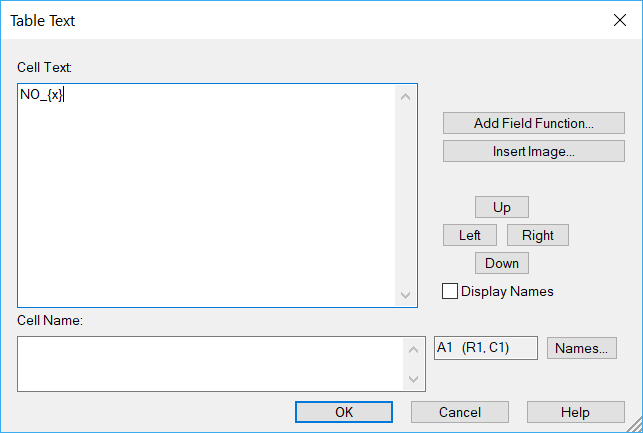
- Text Field
Edit text in this box.
More information about formatting the text can be found here: Text Objects and Edit Object=>Text.
- Add Field Function
Using this button a field function can be selected from a dialog box.
More information about field functions can be found in Field Functions.
- Name
The cell name can contain a placeholder. A placeholder is text that begins with a dollar sign, followed by the text, followed by another dollar sign, e.g. $Operator$.
The placeholders can be edited using a special dialog box or their text can be loaded from a data file using the data browser or using the command Load Placeholder Text form file (Right click outside the page to open the page context menu.)
To load the data from a data file the text within the $ symbols must agree with text in the global attributes of the selected NC file. The placeholder text is case sensitive. Values will be transformed into strings. If the NC attribute contains a vector, the elements will separated by a comma followed by a blank.
To access attributes of a specific variable the variable name must be separated from the attribute name with a period. Example: $Torque.long_name$.
The placeholder text can be loaded from a data file using the data browser. See The Data Editor. Select the type
Text: Load Placeholder Text.
Note
Placeholders and formula cannot be mixed in the same cell name.
- Display Names
If this option is selected the cell names will be temporarily displayed in the table cells until the dialog box is closed.
- Left, Right, Top, Bottom
These buttons are used to navigate to other cells without leaving the dialog box.
- Callback
Use this field to convert the active cell in a button. The behavior is the same as for Button Creation with text. The function has to be entered as follows.
MyScript?Arg1,Arg2,Arg3
Where arguments can be strings (without quote), numbers or @ that will be replaced by the table handle for further operation in the script.
Comment
In the text of an object you can use special characters and the ANSI character sets. Characters or series of characters can be printed in sub- or superscript. Text can contain lines, arrows and symbols. See Text Objects.
Field functions are especially coded strings in text fields. They can be used to update information in documents automatically. They can be used with table or text drawing objects.
Example: The file name is displayed as a text box in a UniPlot document page. If the document is saved under a new name the field is updated and displays the new name.
Solution: Create a text box and type the following text: @f{documentname}.
Instead of the string @f{documentname} the file name is displayed, e.g.
c:\test.ipw.
Simple Table Calculations
The cell name can contain a formula. The formula always starts with an equal
sign (=), which can be followed by numbers, math operators
(+ - * / ^) and UniScript functions. The formula must be
added to the name element of a table cell. The result of a formula must be a
single real or string value.
Note
A cell cannot contain both a formula and a placeholder. To use a placeholder value in a formula, place the placeholder in a different cell and reference that cell in your formula.
A formula can reference cells in the same table, or from another table in the same page using the following syntax.
= A1 // References cell A1 of the active table
= 'My Table'!A1 // References cell A1 of the table named 'My Table'
To edit the table’s name see Table Configuration
Starting with UniPlot R2025.3, Cell references follow Excel-style addressing. You can use the $ symbol to fix (lock) a row, a column, or both
=A1   //relative reference (row and column adjust when copied)
=$A1  //column fixed, row relative
=A$1  //row fixed, column relative
=$A$1 //both row and column fixed
This allows formulas to be copied across cells while maintaining control over which parts of the reference remain constant.
The same behavior can also be user in Conditional formatting of tables.
Note
This version introduces a change in reference behavior. In earlier UniPlot releases, all references were treated as absolute (=$A$1). Starting with UniPlot R2025.3, references without $ are relative and slide when applied to a range. Existing templates will be automatically updated on import to maintain compatibility, but new rules will follow the new relative/absolute logic.
Here are some formula examples:
Example |
Description |
|---|---|
=A1+A2+A3 |
Adds the values in cells A1, A2 and A3. |
=sum(A1:A12) |
Calculates the sum of the values in A1 through A12 |
=IF(A1 > 10, A2, B2) |
Uses the IF function to test, if the A1 cell is greater than 10. If true,
A2 is used otherwise B2. Valid comparision operators:
|
=(A1+A2+A3)/3 |
Calculates the avarage of A1, A2 and A3. |
=mean(A1:A12) |
Calculates the avarage of A1 to A12. Colons (:) are used to separate the reference to the first and last cell in the range |
=sprintf(“%.2lf kg”, mean(A1:A12)) |
Calculates the avarage of A1 to A12 and formats the result. 2 decimals places plus the unit kg. |
=std(A1:A12) |
Calculates the standard deviation of A1 through A12. |
|
Highlight a cell. If the cell value of F4 is greater than 0.5 the cell
color is set to green (“#00FF7F”) and the value |
The cell reference A1 refers to the value of the table cell in column 1 (A) and row 1. A20:A30 is a range of cells in column 1 (A) and rows 20 through 30.
If a cell does not contain a valid number, it will be converted to the value 0. The formula can contain parentheses.
Functions for tables
FormatCondition(rsCompare, color_true, color_false, pValue_true, pValue_false)
Sets the cell color.
A color can be spefied by its name (“red”), as an RGB value [255,0,0] or using
its hex-code #000000 (“#FF0000”).
The rsCompare parameter contains the condion, e.g. that a cell value is greater
than a constant value, e.g F4 > 0.5. Other compare operators: <,
== , !=, >=, <=. Logical operators can be used: AND (&&),
OR (||), e.g. F4 > 0.5 || F5 > 1.5
If the function is called with 3 parameters, the cell text will not be changed. If the function is called with 4 parameters, pValue_true will be displayed. If the function is called with 5 parameters, pValue_true will be displayed, if the condition is TRUE (1) and otherwise the pValue_false will be displayed. angezeigt.
IF(rsCompare, value_true, value_false)
If rsCompare is TRUE (1), e.g. F4 > 0.5 the function returns value_true and
otherwise value_false. The value can be a string or number.
User defined table functions
New functions can be added. See FormatCondition in the file
<uniplot>\script\drawing\rs_table_evaluate.ic an an example.
The function must return a scalar string or number. The return value will
be displayed in the cell.
History
Version |
Description |
|---|---|
R2025.3 |
‘My Table’!A1 can be used to reference cell on othter page. $ can be used to block or free cell references. |
id-415001