Diagram=>Diagram Settings
Provides control over the diagram size, axis position, axes links and other settings.
See also Stacked diagrams with multiple y axes.
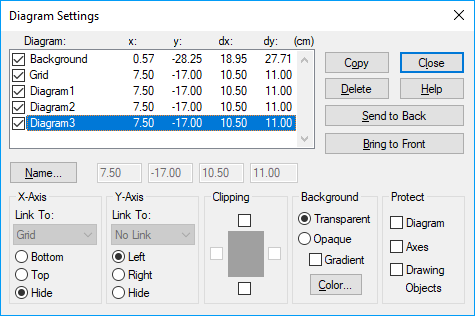
The diagrams will be drawn on the printer and the monitor in the same order as they are listed in the list box.
The background layer is always listed in the first row. This layer can only hold drawing objects.
- Diagram
- Shows all the diagrams in the document. The first column displays the names of the diagrams. The other columns are the position of the upper left corner (x, y) and the width and height of a diagram (dx, dy) in centimeters. You can change a measurement in one of the text boxes underneath the list box. The check mark in the box next to the name indicates that the diagram is displayed. Clear the check box to hide a diagram from the page.
- Name
- To change the diagram’s name, click the Name button and edit the name in the dialog box.
- Link To
- Shows the axis link of the selected diagram. If the axis is not linked, it will display No Link. To change the link, select the name of another diagram.
- Axes Links
Axes of the same type can be linked, therefore they will use the same axis scaling. Linked axes are especially useful for diagrams with multiple y-axes. When the scaling of one axis is changed, the linked axes will be updated automatically. Only the scaling of an axis is affected through the link. The diagram title, the axis length and other settings of a diagram are not affected.
The axes link can only link axes on the same page. To link axes on different pages or link stacked diagrams use the Diagram=>Link Axes Scales command.
- Bottom, Top, Left, Right, Hide
- These options define the position of the x- and y-axis relative to the diagram or hide an axis. You can move an axis parallel to its standard position in the Diagram=>Layout=>Axes dialog box.
- Clipping
- Specifies to what side of a diagram the dataset will be clipped if the data plot extends outside the diagram frame.
- Background
- The diagram can be plotted transparently or opaque. For an opaque background, a solid color fill or a color gradient can be specified.
- Protect
- Protects elements of a diagram against changes made by mistake.
- Copy
- Adds a new diagram to the end of the list. The diagram settings will be copied from the selected diagram
- Delete
- Deletes the selected diagram including all the attached datasets and drawing objects.
- Send To Back
- Sends the selected diagram to the back but above the background layer.
- Bring To Front
- Brings the selected diagram to the front (the bottom row of the list).
id-1971887